No. Otter cannot record a phone call on an iPhone or an Android phone. Otter records what the microphone hears, or joins a video meeting as a participant. A regular phone call is neither: the phone’s operating system handles the call and does not hand the audio to other apps. Otter’s own help center says so, and adds that a live Otter recording pauses the moment a call starts. The workaround it offers is to record the call with your phone’s built-in recorder and import the file into Otter afterwards.
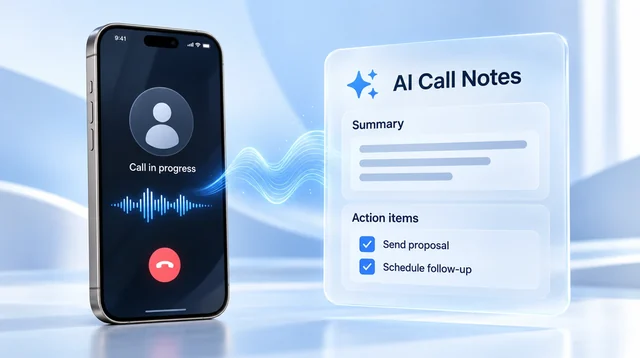
Take the notes where the call happens. If the call runs through an app that records it on the line, there is nothing to pause and nothing to import. Epocra is a calling app that does exactly that: every incoming and outgoing call is recorded from the moment it connects, and a few minutes after you hang up you have the transcript by speaker, a summary and the follow-ups as tasks.
Disclosure: we make Epocra. Everything said about Otter below comes from Otter’s own help center, checked on 8 October 2026.
See it in action
A phone call that transcribes itself
An interactive demo, not a video. A call ends, and a few minutes later the recording, the transcript and the summary are waiting. Nothing was imported from anywhere.
- Records from the moment it connects — incoming and outgoing, no app to open first
- Transcript by speaker, then a summary — with the action items pulled out
- Keeps your number — through one call-forwarding code from your carrier
Why Otter can’t hear a phone call
Otter has two ways of listening. On a laptop or a phone it records through the microphone, the same way a voice-memo app does. For Zoom, Google Meet and Microsoft Teams it joins the meeting as a participant and takes the audio from the meeting itself. Both work well, and neither reaches a phone call.
A phone call is handled by the phone’s own calling system, not by an app you install. On an iPhone and on Android, that system does not pass the call audio to third-party apps, and when a call begins it takes the microphone for itself. Otter is not being singled out; every app that records through the microphone is in the same position. This is why Otter’s help center warns that a recording in progress will pause as soon as you make or answer a call. There is no setting in Otter that changes it, because the limit is in the phone, not in Otter.
What Otter’s help center says
Otter publishes an article called “Record and transcribe a phone call.” Its first paragraph is the whole answer:
“Apple and Google currently restrict third-party apps from recording phone calls directly, so calls must be recorded separately and imported into Otter. We hope to offer direct phone call recording and transcription in the future if platform policies allow.”
Otter help center, “Record and transcribe a phone call,” last updated about eight months before 8 October 2026
The article’s FAQ repeats it in one line: “A live recording in Otter will pause during a phone call.” So the answer to the question in the title is settled by Otter itself. What Otter does well is the step after the call: give it an audio file and it will transcribe it, tag the speakers and write a summary. The problem is getting the file.
Otter’s workaround, step by step
Otter’s recommended route is to record the call with the recorder built into the phone, then share that file into Otter. Here is what that looks like on each platform, with the catches that Otter’s article does not mention.
On an iPhone
- Turn on Apple’s recorder once, in Settings › Apps › Phone › Call Recording. It needs iOS 18.1 or later.
- During the call, tap More and choose Call Recording. Both people on the call hear an automated announcement that the call is being recorded, and there is no way in iOS to turn that off.
- When you hang up, the recording lands in the Notes app, in a folder called Call Recordings.
- Open the note, tap the three-dot menu, choose Share Audio, pick Otter, and tap Import.
- Otter transcribes the file, tags the speakers and writes its summary.
On an Android phone
- Record the call with the phone’s own recorder. Google offers one on supported Pixel phones, and some other makers have their own. Whether you have one at all depends on the device, the region and the carrier, and the built-in recorders announce the recording to both parties.
- After the call, find the recording, share it, and pick Otter from the share menu.
- Rename it if you like and tap Import. Otter does the rest.
It works. It also means every call you want notes on is a decision you make during the call, a tap you have to remember, an announcement the other person hears, and a file you move between two apps afterwards. The calls that matter most are usually the ones that come in while you are doing something else, and those are the ones this routine misses.
The speakerphone trick, and why it disappoints
The other workaround people try is to put the call on speakerphone and let a second device running Otter listen in: a laptop on the desk, or a tablet. It cannot be the phone itself, because the phone pauses Otter the moment the call connects.
Three things go wrong. Your side is recorded cleanly and the other person’s voice arrives through a small speaker, so the transcript is lopsided and the speaker tags guess. Everyone near you hears the whole conversation. And you are tied to a desk with two devices, which rules out the car, the site visit and the walk between meetings, which is where most phone calls happen. It is a fine trick for one important call at your desk. It is not a way to take notes on your calls.
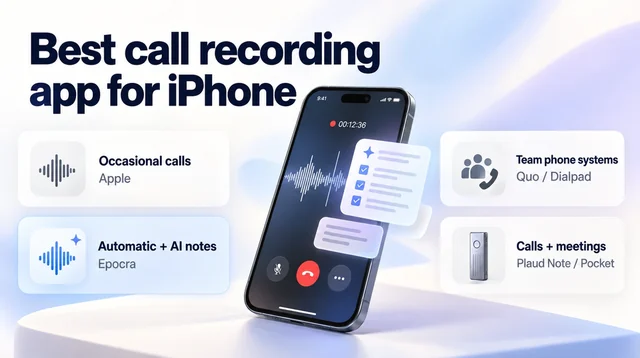
Ways to get a phone call transcribed
If the goal is a transcript and a summary of your phone calls rather than Otter specifically, these are the routes that exist in 2026.
| Starts how | Announced | Transcript & summary | |
|---|---|---|---|
| Apple’s built-in recorder + Otter | You tap during each call | Yes, to both parties | After you share the file into Otter |
| Pixel or Samsung built-in recorder + Otter | You tap during each call, where available | Yes | After you share the file into Otter |
| Merge-call apps (TapeACall and similar) | A recording line is merged into the call | Varies by app | Recording and transcript in the app |
| Epocra | Automatically, every call, both directions | Your choice, on by default | Transcript, summary and tasks a few minutes after the call |
Scroll the table sideways on a phone.
The first two rows are Otter’s own workaround. The third row is covered in the roundup of iPhone call recording apps. The last row is what the rest of this page is about.
How Epocra does it
Epocra does not try to listen to your phone. It is the phone. You get a business number in the app and use it as your dialer, and because the call runs through Epocra’s own line, the recording happens on that line rather than on your handset. There is no merge step, no second device and no file to move.
- Every call, both directions. Incoming and outgoing calls are recorded from the moment they connect. You do not decide per call.
- Transcript, summary and tasks. A few minutes after you hang up: the transcript by speaker, a summary with the key points and next steps, and every commitment pulled out as a task. It is in the app, on your desktop and in your inbox.
- Ask across every call. “What did she say about the inspection?” gets an answer from the actual conversation, however long ago it was.
- Your number stays yours. Calls go out showing the cell number you verified, so the people you call see the number they already have.
- The recording notice is yours to set. It is on by default and you control it in settings, within the consent law where you and the other party are.
Epocra starts with a free trial and then costs from $24.99 a month. The Android app is on Google Play; the iPhone app is in Apple review. If you also want notes on video meetings and in-person conversations, the wider comparison is in AI note taker for phone calls.
A word on consent
None of this changes what the law asks of you. Most US states allow a call to be recorded when one person on it knows, and that person can be you. A smaller group of states requires everyone on the call to agree. Which rule applies depends on where you and the other person are, and it is the same rule whether the recording came from Apple, from Otter’s import, or from Epocra. The state-by-state detail is in call recording laws by state. This is general information and not legal advice.
Sources: Otter help center: Record and transcribe a phone call · Otter help center: Troubleshoot audio recording problems · Epocra: how to record a phone call on iPhone · Epocra pricing. Otter’s wording checked 8 October 2026. Otter is a trademark of its owner and is named here for comparison only.
Frequently asked questions
No. Otter records through the microphone or by joining a video meeting, and iOS does not give third-party apps the audio of a phone call. Otter’s help center says a live Otter recording pauses during a phone call and recommends recording the call with Apple’s built-in recorder, then sharing the file into Otter.
No. The same restriction applies on Android. Otter recommends using the phone’s built-in call recorder where the device, region and carrier allow it, then sharing the recording into Otter for transcription.
When a call starts, the phone takes the microphone for the call and apps that record through the microphone are paused. Otter’s help center states this directly. It is a limit set by Apple and Google, not a setting in Otter.
Only from a second device, because the phone itself pauses Otter during the call. The result is a lopsided recording with your voice clear and the other person’s coming through a small speaker, and everyone nearby hears the conversation.
Yes. If you import an audio file of a call, Otter transcribes it, tags the speakers and writes a summary. The limit is in getting the recording, not in transcribing it.
A calling app that records on its own line. Epocra records every incoming and outgoing call from the moment it connects and delivers the transcript, a summary and the follow-ups as tasks a few minutes after you hang up. It starts with a free trial.
More in the Help Center: What gets recorded.
James Ritter
Founder of Epocra. Fifteen years in payments, now building call intelligence for people who run their business from their phone.
Keep reading